
To help you get on your way by making your own panoramas we have selected a couple of cameras which we have tested and are capable of making a 360º panorama that meet the basic requirements of EnergyPlanner.
* Our software does not impose any limits on resolution or file size. For example, importing a 20.000 × 10.000 pixel 360º photo of 50 MB is fully supported.
Contents
- Recommendation
- Camera Comparison
- Insta360 X5
- DJI Osmo 360
- Ricoh Theta SC2
- Image Quality Comparison
- Explore the Full Panoramas
- Final Ranking
Recommended panorama specifications
- Minimum resolution: 12,000 × 6,000 pixels
- Aspect ratio: 2:1
- File format: JPG (minimal to no compression)
Recommendation
For the best overall experience, we currently recommend the Insta360 X5.
Compared to previous models such as the Insta360 X3, the X5 offers improved image quality, better low-light performance and a more refined workflow for processing and exporting 360° panorama photos.
During our own testing, we also evaluated the DJI Osmo 360 and Ricoh Theta SC2. While all three cameras are capable of producing panoramas suitable for use within EnergyPlanner, the Insta360 X5 consistently delivered the best balance between image quality, ease of use and software support.
The Insta360 ecosystem currently provides:
- Excellent image quality and detail
- A mature and user-friendly software environment
- Easy panorama exporting and file management
- Reliable stitching and image processing
- A streamlined workflow for professional use
- Replaceable lens protection
For users primarily focused on creating 360° panorama photos for EnergyPlanner workflows, the Insta360 X5 is currently the best all-round solution.
If you require even higher-quality panoramas, the best approach remains capturing multiple photographs on a tripod combined with a gimbal and manually stitching them using software such as PTGui.
Camera Comparison
The cameras below were tested for creating 360° panorama photos suitable for use within EnergyPlanner.
| Camera | Insta360 X5 | DJI Osmo 360 | Ricoh Theta SC2 |
|---|---|---|---|
| Usability | ★★★★☆ | ★★☆☆☆ | ★★★☆☆ |
| Overall photo quality | ★★★★☆ | ★★★☆☆ | ★★☆☆☆ |
| Sharpness when zoomed in | ★★★★☆ | ★★★☆☆ | ★★☆☆☆ |
| Photo resolution | 11,968 × 5,984 (72 MP) | 15.520 × 7.760 (120 MP) | 5,376 × 2,688 (14.5 MP) |
| Low-light performance | ★★★★☆ | ★★☆☆☆ | ★☆☆☆☆ |
| Mobile app control | Yes | Yes | Yes |
| Desktop software | ★★★★☆ | ★★★☆☆ | ★☆☆☆☆ |
| Remote control | Yes | Yes | No |
| Touchscreen | Yes | Yes | No |
| SD card slot | Yes | Yes | No |
| Local storage | No | 128 GB internal | 14 GB internal |
| Automatic photo stitching | Camera + desktop software | Camera + app | Camera |
| Replaceable lens protection | Yes | No | No |
Insta360 X5

The Insta360 X5 is currently our recommended camera for creating high-quality 360° panorama photos.
During our tests, the X5 consistently delivered the best overall results. The camera produces sharp panoramas with a high level of detail, making distant objects such as buildings, infrastructure and vegetation clearly visible within EnergyPlanner.
In addition to image quality, the X5 stands out because of the mature Insta360 software ecosystem. Importing, managing and exporting panorama photos is straightforward and reliable, resulting in an efficient workflow for both occasional and professional users.
Strengths
- Excellent image quality and detail
- High panorama resolution (72 MP)
- Strong performance in a variety of lighting conditions
- User-friendly mobile and desktop software
- Efficient export workflow
- Replaceable lens protection
- Suitable for both beginners and advanced users
Conclusion
The Insta360 X5 offers the best balance between image quality, usability and software support. For most EnergyPlanner users, this is currently the best choice.
Getting Started with the Insta360 X5
Since the Insta360 X5 is our recommended camera for capturing 360° panorama photos, we have created a dedicated guide that walks you through the complete workflow.
From selecting the correct camera settings to exporting and stitching your panoramas, the guide covers every step required to create high-quality images ready for use within EnergyPlanner.
The guide includes:
- Recommended camera settings
- Capturing high-quality 360° panorama photos
- Exporting panoramas using Insta360 Studio
- Stitching and image processing
Read the Insta360 X5 step-by-step guide:
How to use the Insta360 X5
DJI Osmo 360
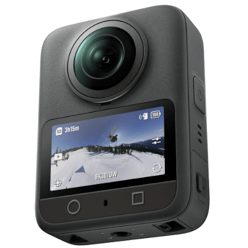 The DJI Osmo 360 is a strong newcomer in the 360° camera market and offers impressive hardware specifications.
During our tests, the camera produced sharp panorama photos with a high level of detail. The image quality is very competitive and performs well in most outdoor environments.
However, compared to the Insta360 workflow, we found the software ecosystem less mature. Managing, processing and exporting panorama photos is currently less intuitive, particularly when working with larger numbers of images.
Strengths
- Good image quality
- High photo resolution
- Internal storage
- Strong hardware specifications
- Good option for users already invested in the DJI ecosystem
Points to Consider
- Software ecosystem is less mature than Insta360
- Export workflow is less streamlined
- Fewer workflow optimisations for professional panorama photography
Conclusion
The DJI Osmo 360 is a capable camera with excellent hardware and image quality. For users already working within the DJI ecosystem, it can be an attractive alternative. However, for overall panorama photography workflows, we found the Insta360 X5 easier and more efficient to use.
Ricoh Theta SC2
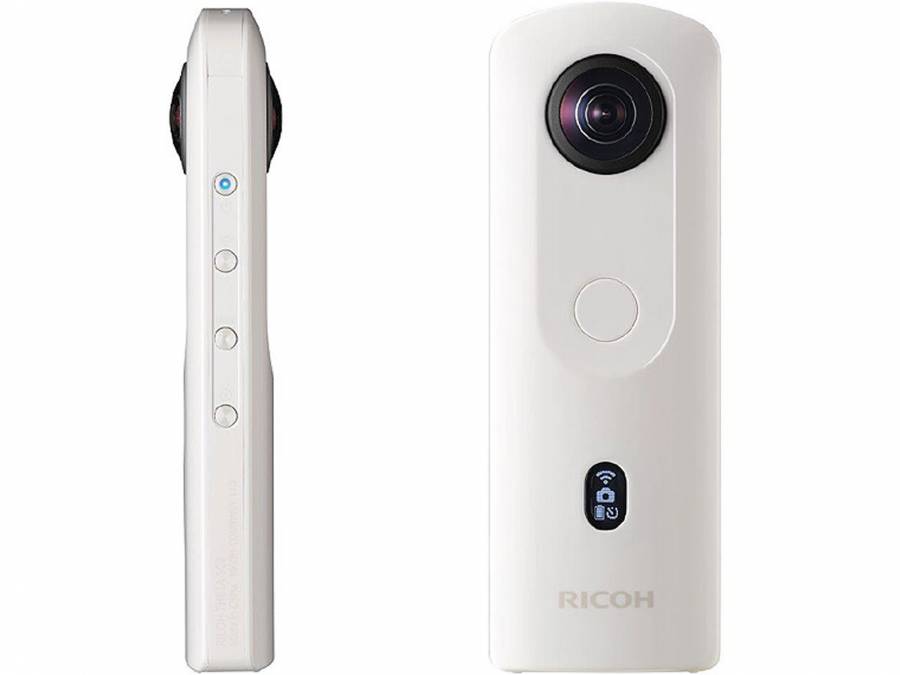 The Ricoh Theta SC2 remains a simple and accessible entry-level camera for creating 360° panorama photos.
The camera is compact, easy to operate and requires very little setup. It is well suited for users who occasionally need to capture panorama photos and prefer a straightforward workflow.
While the camera performs reliably, the image quality is noticeably lower than that of the Insta360 X5 and DJI Osmo 360. This becomes particularly visible when zooming in on
distant objects, where fine details are less clearly defined.
Strengths
- Easy to use
- Compact design
- Simple workflow
- Affordable entry-level option
Points to Consider
- Lower resolution
- Less visible detail at longer distances
- Older hardware compared to newer camera models
Conclusion
The Ricoh Theta SC2 remains a good option for simple panorama projects. However, for projects where image quality and detail are important, we recommend the Insta360 X5.
Image Quality Comparison
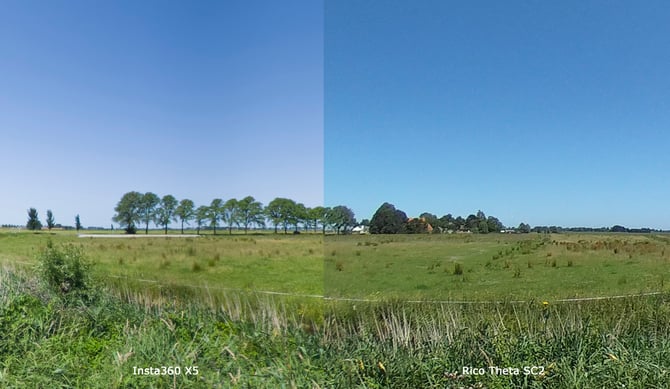
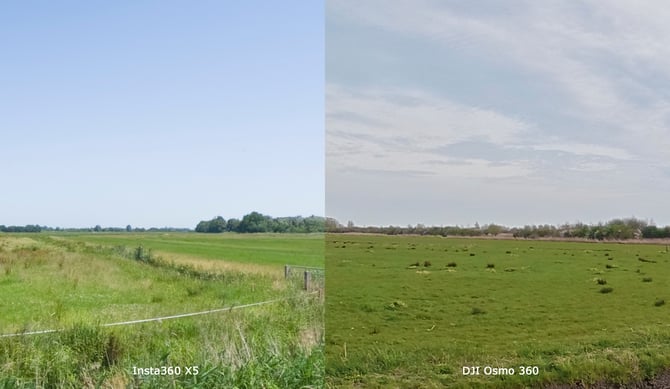
While all three cameras are capable of producing panoramas suitable for use within EnergyPlanner, the Insta360 X5 consistently delivers the highest level of detail and the most balanced image quality across a variety of conditions.
To illustrate the differences between the cameras, we captured a series of panorama photos at the same location using the Insta360 X5, DJI Osmo 360 and Ricoh Theta SC2. The comparison below allow you to directly compare the images and evaluate differences in sharpness, detail, colour reproduction and overall image quality.
Explore the Full Panoramas
The image comparisons above show selected sections of the original panoramas. To get a complete impression of the image quality, you can also explore the full 360° panoramas captured with each camera.
Within our SEP platform, you can freely navigate through the panoramas and compare the results yourself.
View the full panorama comparison in SEP:
360 camera examples
This allows you to assess the image quality of each camera in a real-world environment and see why the Insta360 X5 is currently our recommended choice for capturing 360° panorama photos for EnergyPlanner.
Final Ranking
Based on our testing and overall user experience, the cameras rank as follows:
1. Insta360 X5
Best overall image quality, software ecosystem and workflow.
2. DJI Osmo 360
Excellent hardware and image quality, but currently less refined software and workflow.
3. Ricoh Theta SC2
Simple and reliable entry-level option, but clearly behind the newer cameras in terms of image quality and detail.
For most EnergyPlanner users, the Insta360 X5 currently provides the best combination of image quality, ease of use and workflow efficiency.